Troubleshooting Entra Cloud Sync in CIS-Hardened Environments: A gMSA Encryption Odyssey
When deploying Microsoft Entra Cloud Sync in highly secure environments, edge cases are expected in hardened environments, but this one unravelled in ways the docs didn’t prepare me for. But I recently hit a problem that took some carefully structured troubleshooting, lab testing, and plenty of false leads to fully resolve. The culprit? A seemingly innocuous group policy setting buried in CIS benchmarks.
This post documents the full journey, from symptoms to root cause, and provides a resolution path for others navigating hardened environments.
TL:DR
- CIS policy disables RC4, but gMSA creation may still default to including RC4
- Cloud Sync agent relies on Kerberos negotiation, mismatched encryption types cause silent failure
- gMSA must be explicitly set to support only AES encryption (decimal value 24)
- Manual assignment of retrieval permissions is necessary if provisioning agent fails midway
- Microsoft documentation implies domain functional level of 2012+ is required, but gMSA works with 2008 if all DCs are at least 2012
The Background
- Environment: Windows Server 2016 domain controllers, domain functional level 2008, CIS Level 1 Benchmarks applied via Group Policy Objects.
- Goal: Install the Entra Cloud Sync agent on a server and validate its configuration via group managed service account (gMSA).
- Symptoms:
- Cloud Sync provisioning agent fails after multiple retries
Error Message: Error while creating group managed service account (gMSA). Error: Unable to install service account pGMSA_9********$ after 6 retries.
The error message can be seen below

- gMSA appears in Active directory (dsa.msc) but is inaccessible via PowerShell (Get-ADServiceAccount or Get-ADObject)
- Test-ADServiceAccount returns False
- Provisioning Agent installation logs shows errors

Event Logs shows 12 errors in Event Viewer | Applications and Services Logs | Microsoft | Windows | Security-NetLogon | Operational (2 for each retry) with the error codes, 9001 and 9002.
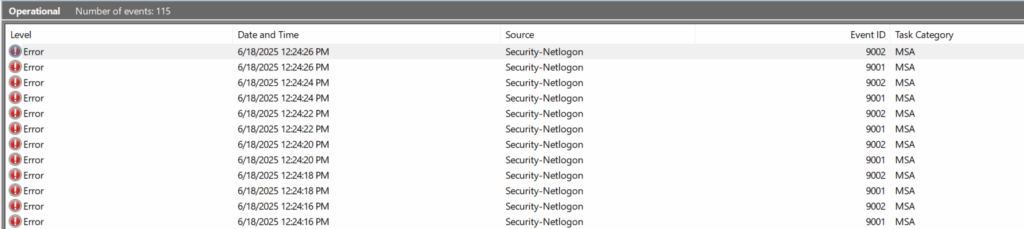
Error 9002 reading:
Netlogon failed to add pMGSA_4******$ as a managed service account to this local machine. The provided Context did not match the target.

Error 9001 reading:
The account pGMSA_4******$ cannot be used as managed service account on the local machine because not all the supported encryption types of the account are supported by the local machine.

The Testing (and ruling out)
- Confirmed, through testing a lab, that the prerequisite for a Forest and Domain functional level of 2012 or newer was not a hard-line requirement as the Microsoft documentation suggests
- Confirmed the gMSA was created successfully in Active Directory
- Attempted querying and modifying gMSA using PowerShell from multiple DCs
- Forced replication using repadmin /syncall /AdeP
- Manually assigned the Cloud Sync server to PrincipalsAllowedToRetrieveManagedPassword
- Verified permissions and domain controller versions
- Reinstalled the provisioning agent multiple times
- Validated that a KDS root key was created and active
- Ran gpresult to explore group policy impact
- Reviewed logs under Microsoft > Windows > Security-Netlogon > Operational
- Investigated and tweaked msDS-SupportedEncryptionTypes on the gMSA account
- Created lab environments to simulate hardened and non-hardened servers
The Breakthrough
By utilising GPResult -h c:\report.html, I was able to look at all the group policy objects that were applied to the server, this gave me a breakthrough insight.
In the hardened production environment, the following policy was set via GPO:
Computer Configuration → Windows Settings → Security Settings → Local Policies → Security Options → Network Security: Configure Encryption types allowed for Kerberos
Crucially with RC4_HMAC_MD5 explicitly disabled.
In this environment, the Group Policy in question had a name that specifically referenced the CIS Benchmarks as being its purpose.
In a lab test:
- A fresh server with no group policies installed Cloud Sync successfully.
- Applying just that one GPO reproduced the exact failure from production, with the same results in the event log and setup log files.
This confirmed the root cause beyond doubt.
The Fix
The next thing to consider is, how do we continue to comply with the recommended security standards and not lower the already established security principles in this organisation, but continue with the installation of our Cloud Sync service. This leaves me investigating further.
It’s at this point, I discover that the automatically created gMSA account by the setup wizard utilises, by default, all encryption standards. This makes sense, as it needs to cater for all types of environments.
That got me thinking, could this be an account problem? We know that the account has been created, it just can’t be used yet by the Cloud Sync provisioning agent.
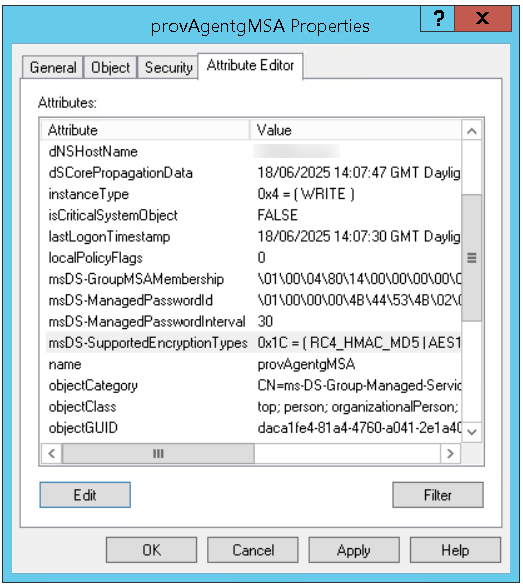
When we take a look at the properties of the gMSA account we can see that there is an Encryption value on the attribute msDS-SupportedEncryptionTypes
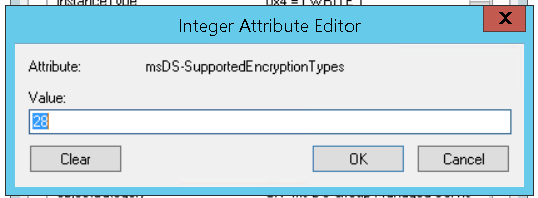
At first glance, this doesn’t look much but when you double click on it, you get another value, 28 as per below
Again though, doesn’t really mean anything, right?
Wrong, this is a calculation of all the encryption types, so if we change this encryption value type, we can exclude the account from attempting to use RC4 which is the type which is causing us all this headache.
So what we need to do, is work out what value we need where RC4 is excluded
- 24 = AES256 + AES128
- No RC4, no legacy enc types
Bingo!
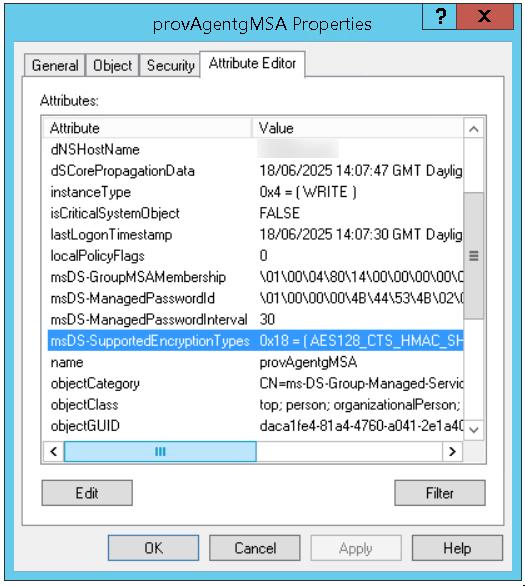
The resolution was to completely remove RC4 from the gMSA and force AES-only encryption, you can set this via PowerShell using the below command:
Set-ADServiceAccount -Identity “Your Identity Here” -Replace @{msDS-SupportedEncryptionTypes=24}
Or it can be changed directly in the Active Directory console, just double click the attribute, and change 28 to 24 and apply the changes
Full Setup Process
After this, I ran through the agent installation again, launching a fresh installation for good measure
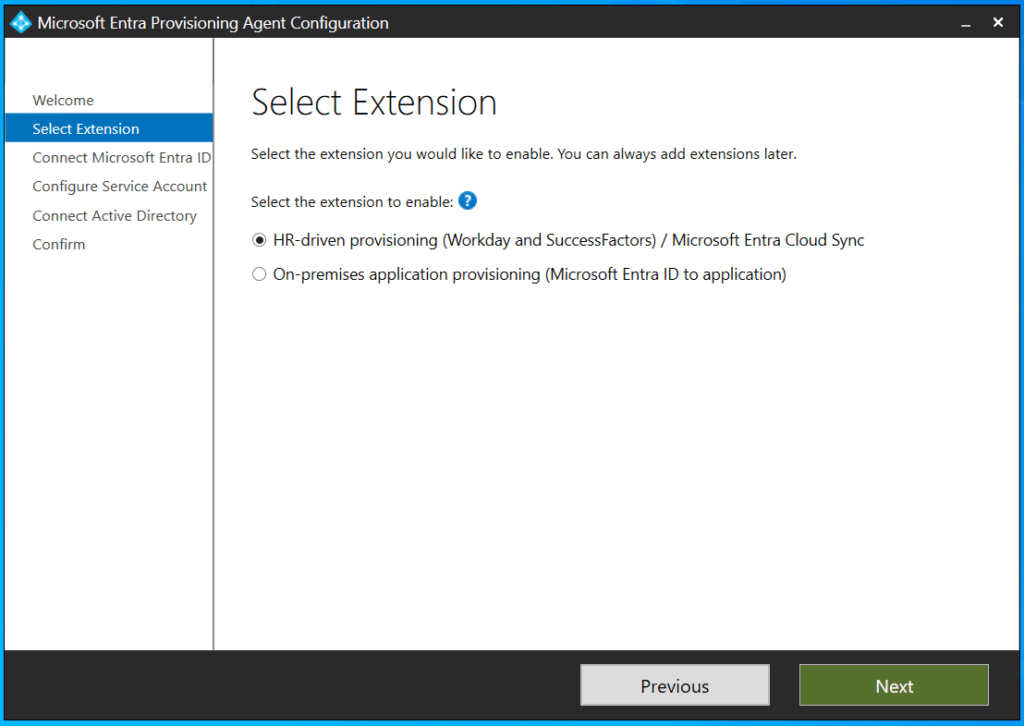
- Choose HR-driven provisioning
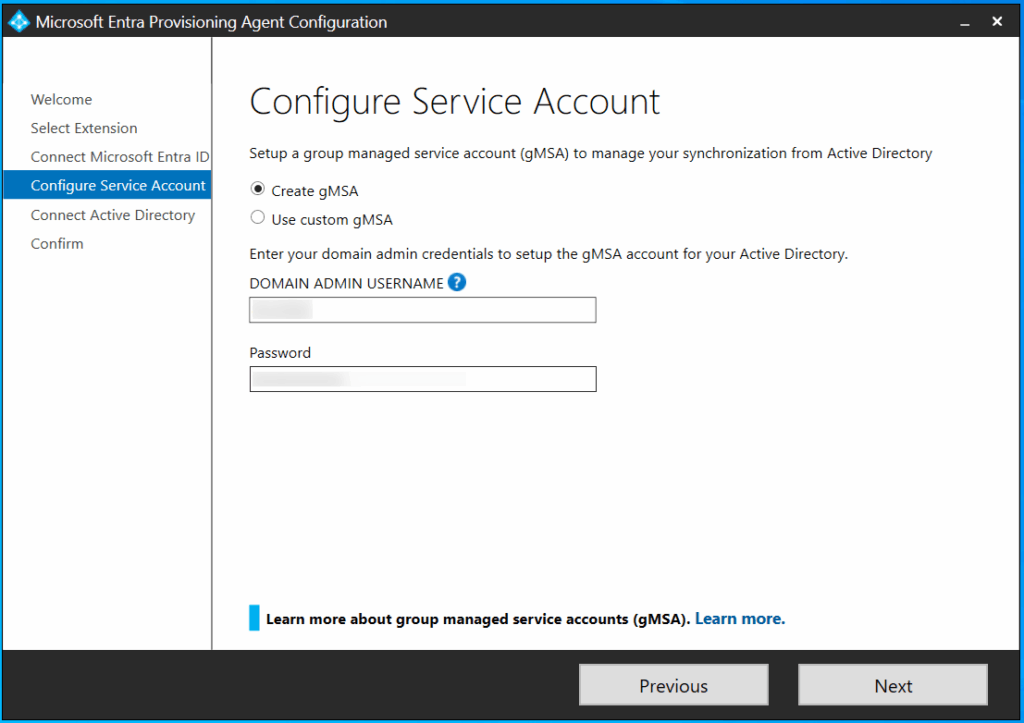
2. Under Configure Service Account, leave the default Create gMSA account selected.
If this is a repeat run through or a retry installing, don’t panic, the setup looks to see if provAgentgMSA$ exists in Active Directory already, if it does, then it uses the existing account
3. Enter the Domain Admin username and password, this account is not stored in the configuration, it’s just used for provisioning the gMSA account in active directory so there is no need to setup a service account for this, or retain Domain Admin privileges when this setup is complete.
Note that Domain Admin rights is the minimum permissions this user requires to complete the setup.
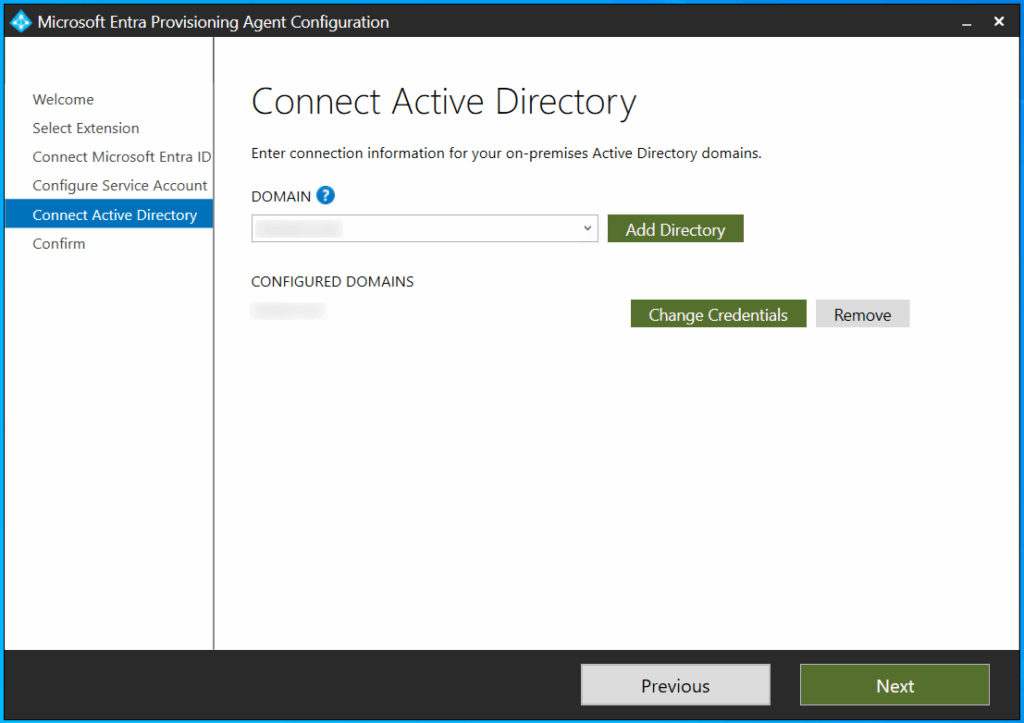
4. On the next screen, make sure the domain is discovered and the configured domain matches the intended target domain.
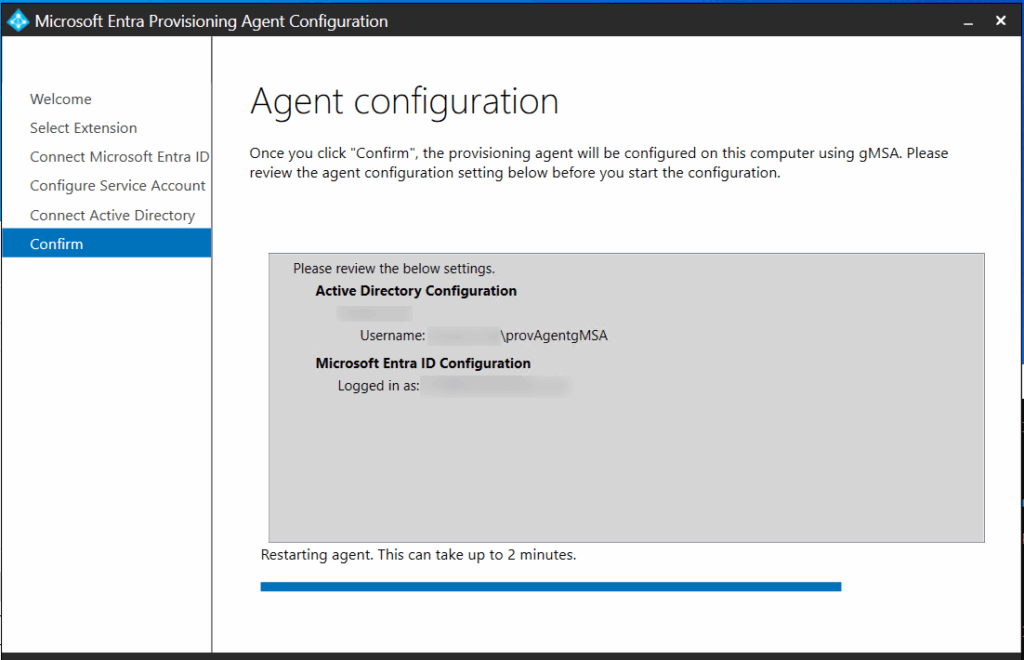
5. Under Agent Configuration, this is your summary confirmation before you commit, if you are happy with the configuration, click Confirm
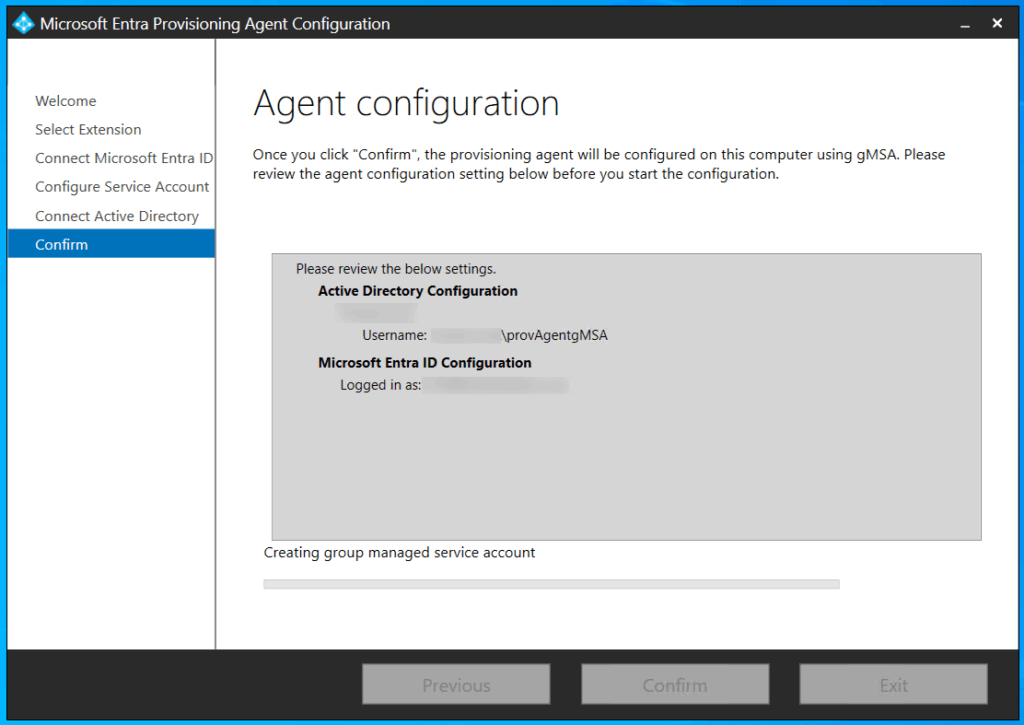
6. Next you will see the Agent configuration progress, this is where we got our error before but we should have resolved that this time.
It can appear that this screen has hung, for me it took longer than 2 minutes, even when successful, so exercise patience up to about 15 minutes if your environment needs it.
7. We have success.
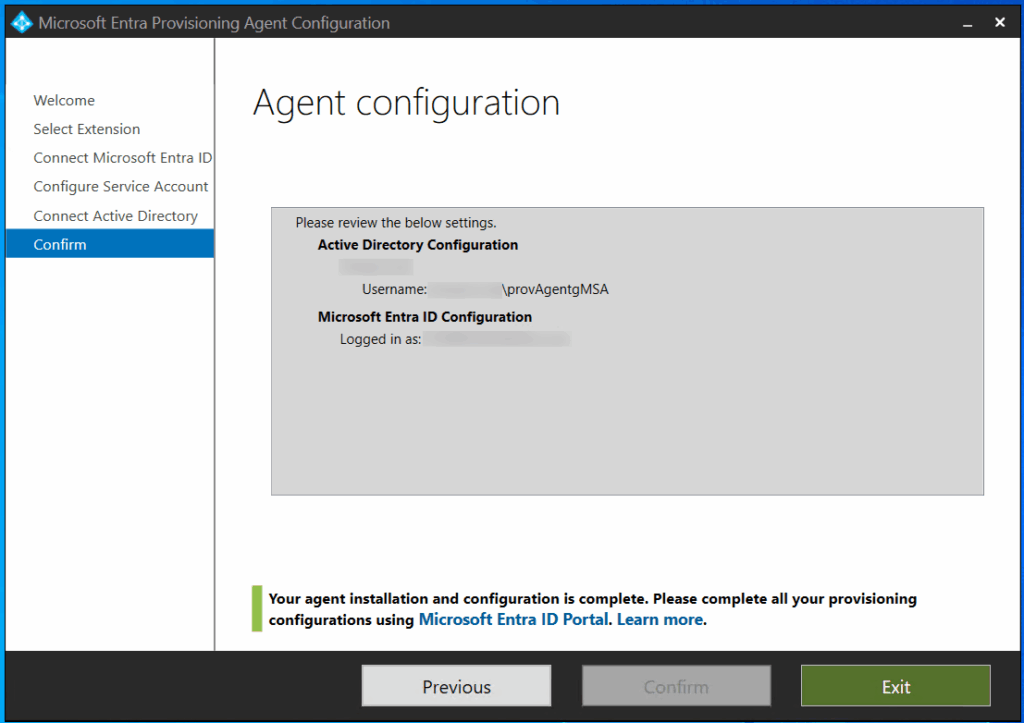
And it finally returned a successful message. What a relief after all that troubleshooting and investigations.

Result!
Conculsion
If you’re deploying Cloud Sync in an environment with strict baseline enforcement, especially CIS Level 1 or 2, this detail may save you hours of reverse-engineering. Hardened environments are absolutely the right thing to have. But they do add layers of complexity that sometimes take hours (or days) to crunch through to deliver successful implementations. I would always recommend testing before live implementation. So alongside those hardened environments, get the test environments up to scratch too!